DTF

Size. White ink. Layout.
One connected workflow.

Single-artwork output, repeated layouts, multiple-image layouts and custom canvases cover different tasks. Confirm dimensions, resolution, W1 choke and margins, then process the Photoshop artwork and export.

From AI artwork to layout and MainTop1:11
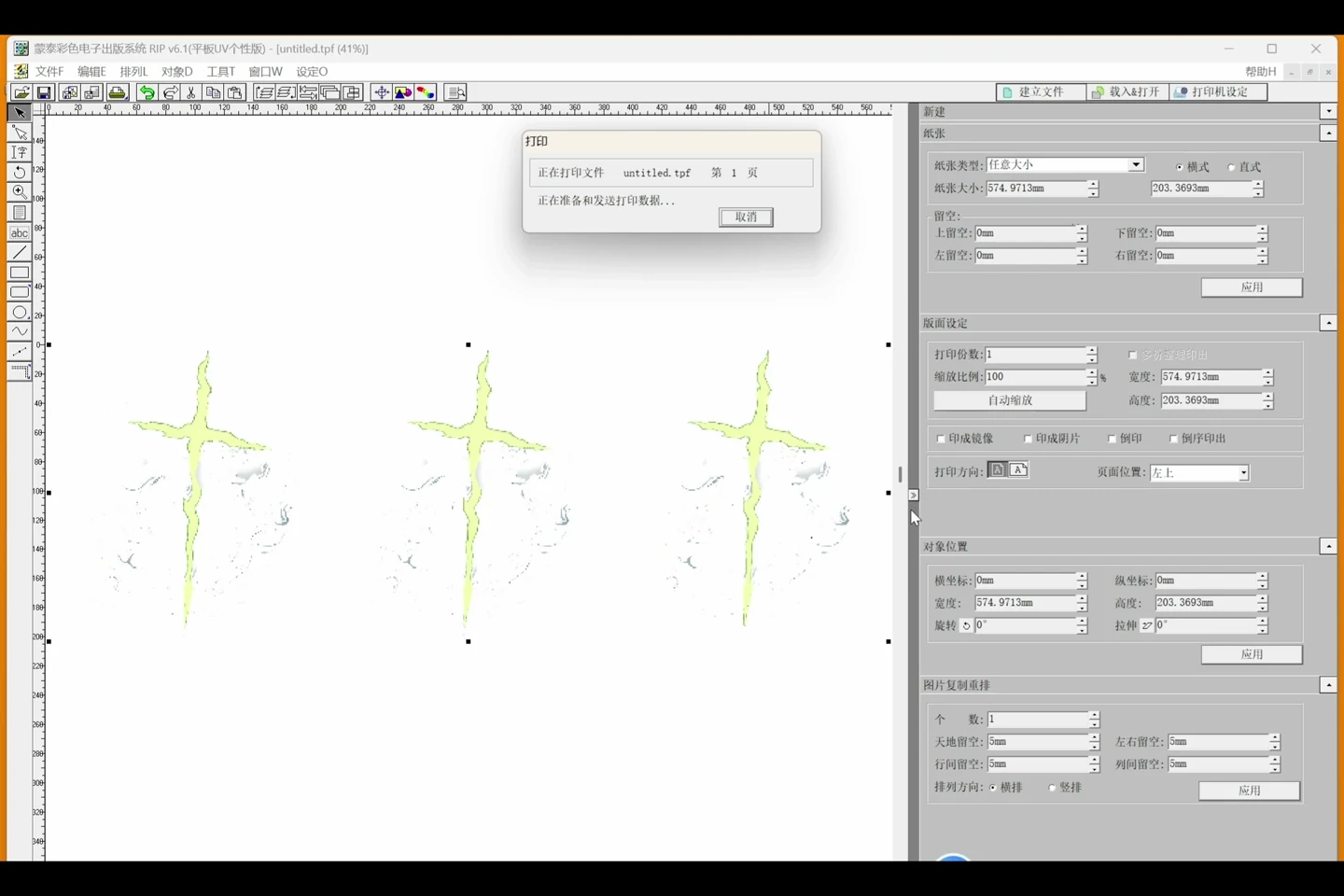
MAIXON × MainTopContinue automatically into MainTop.

Explore each capability.

01

From AI artwork to layout and MainTop

Prepare the artwork, build a DTF layout, generate the white-ink channel and continue automatically into MainTop. One connected path to production.

02

One artwork, straight into MainTop

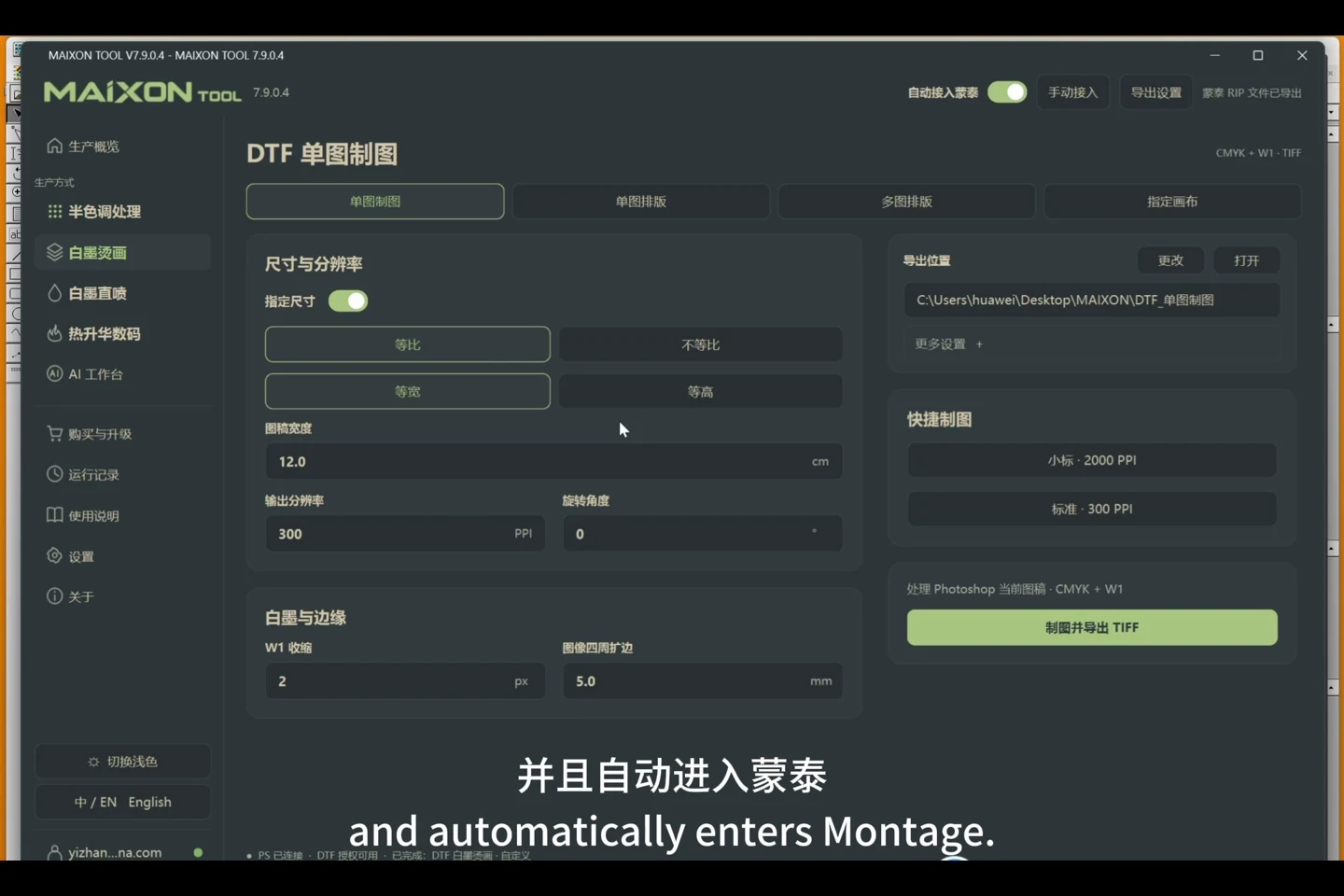
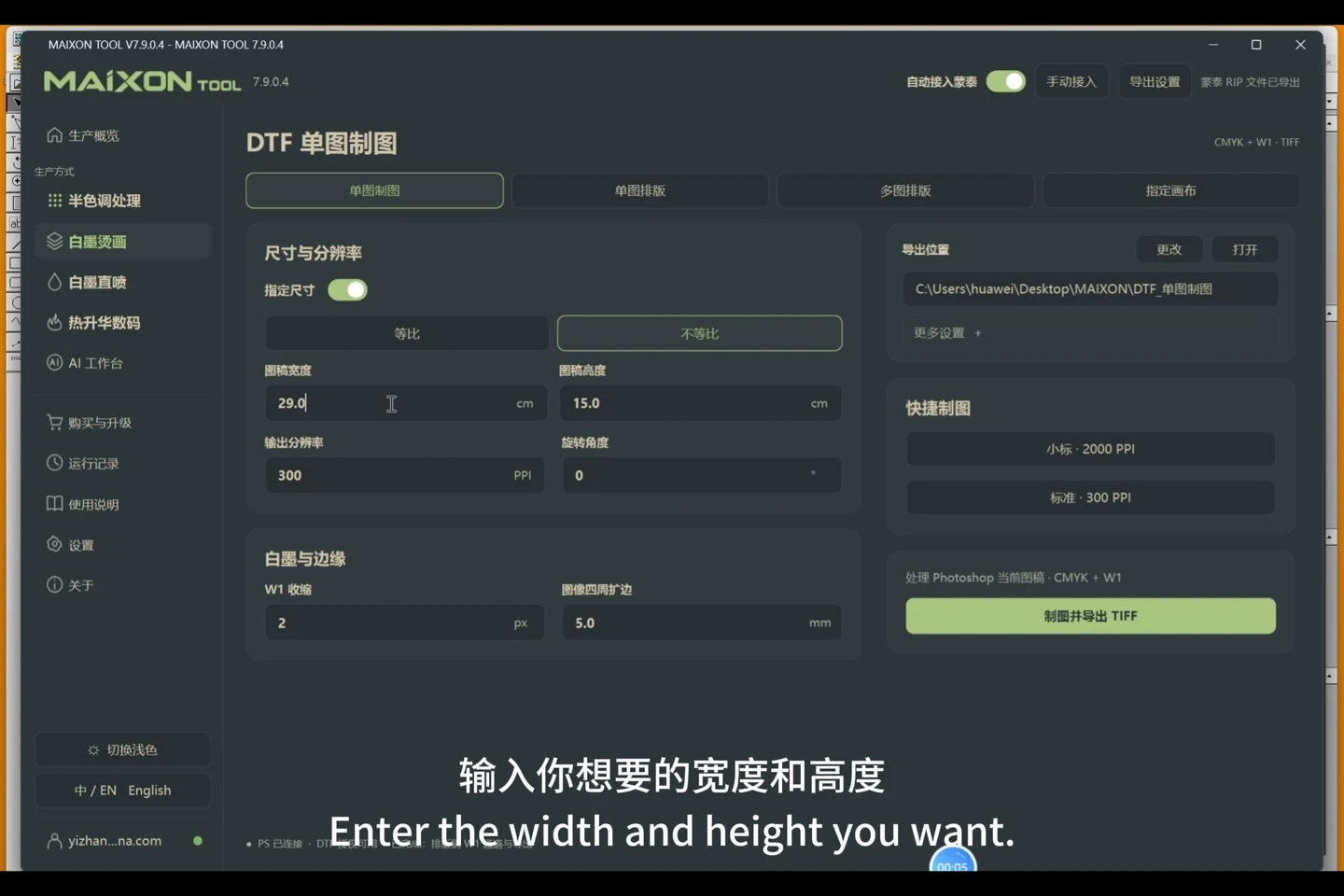
Set the finished size, prepare white ink and output the file. A complete workflow, even for a single image.

03

Arrange the quantity your order needs

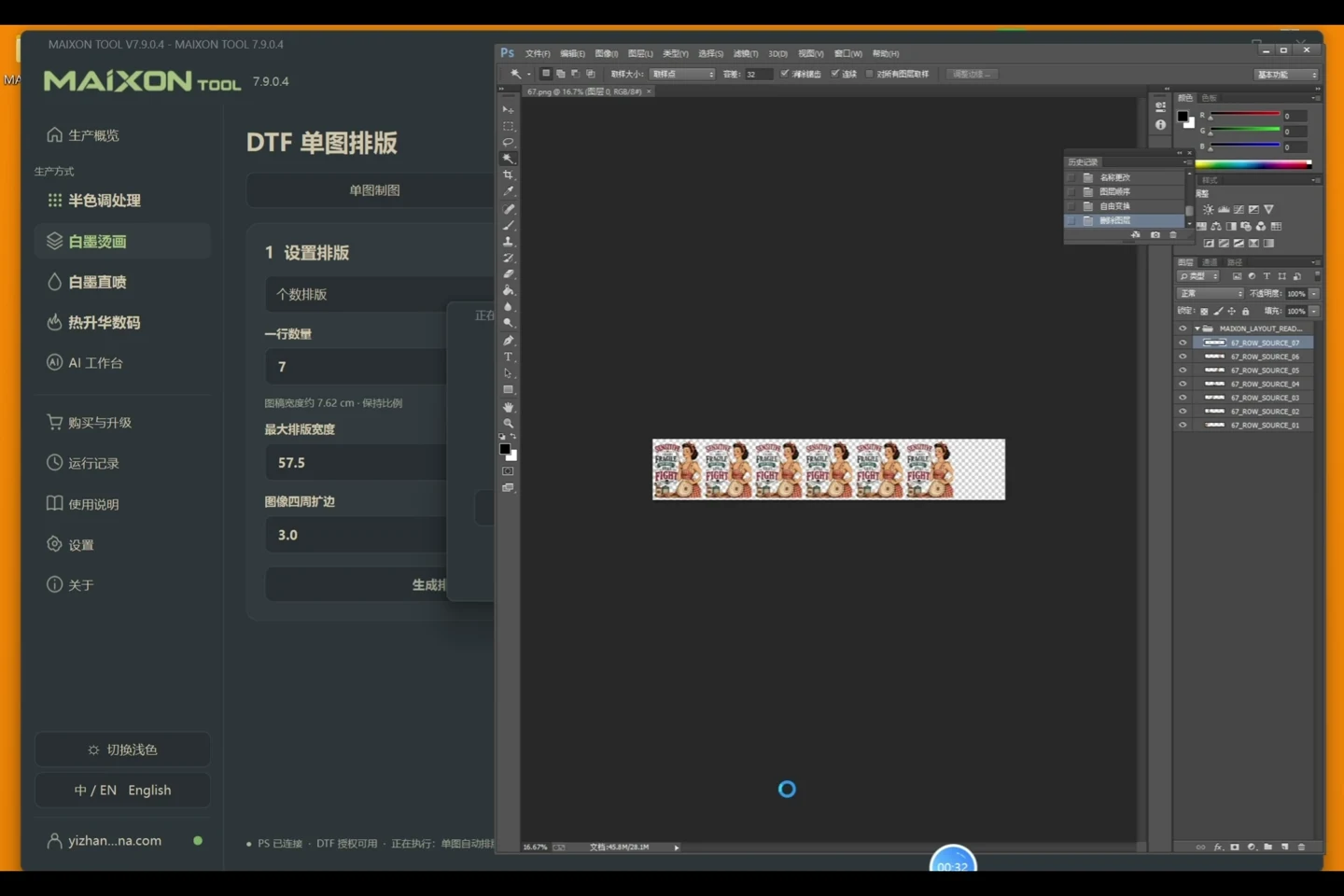
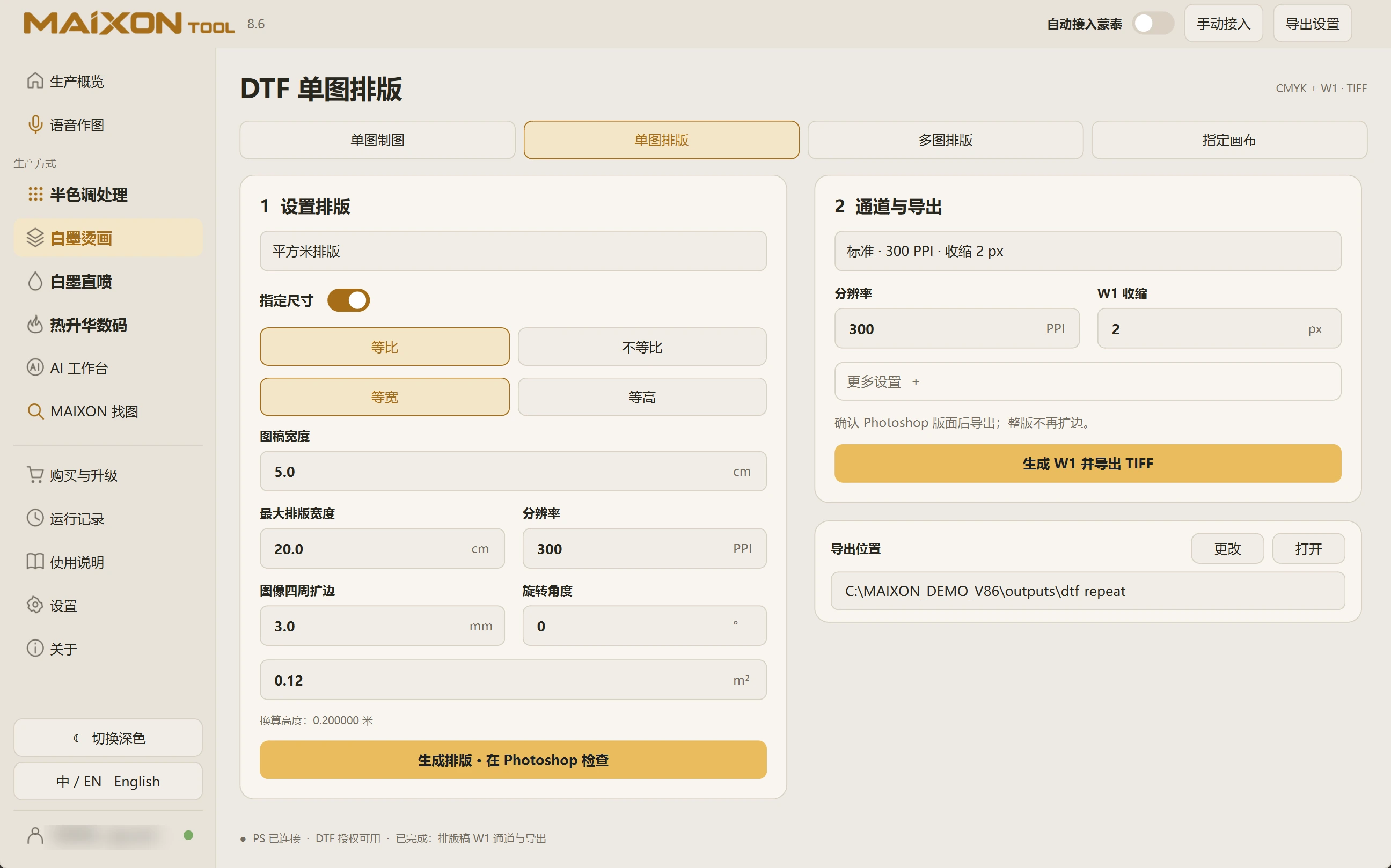
Repeat one design by quantity, generate white ink and continue into MainTop. Ideal for orders with multiple copies of the same artwork.

04

Set width and height independently

When the order calls for exact dimensions in both directions, set width and height separately and check the resulting proportions.

05

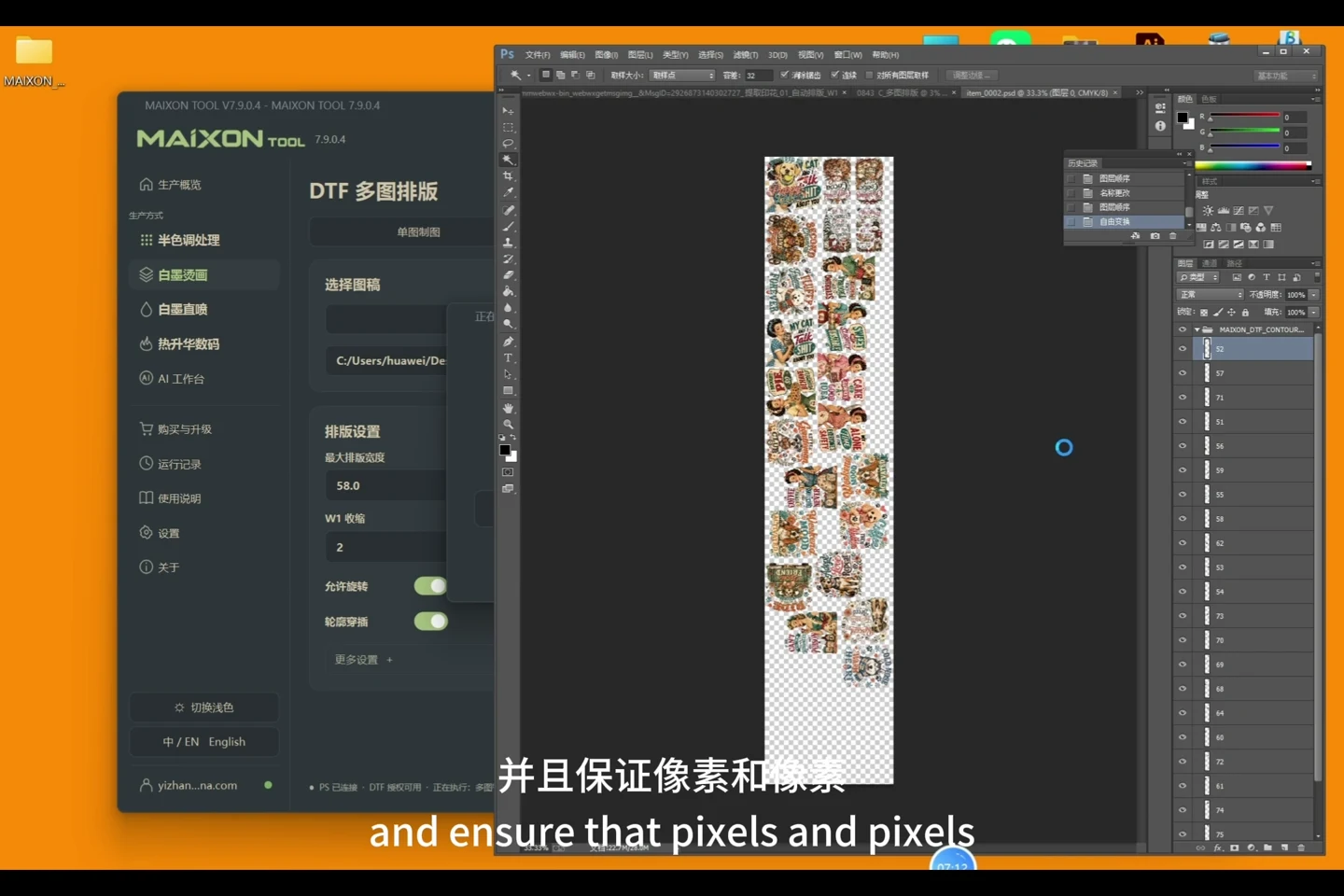
Nest different shapes with rotation

Combine multiple outlines on one layout. Rotation and close nesting help make better use of the available space.

06

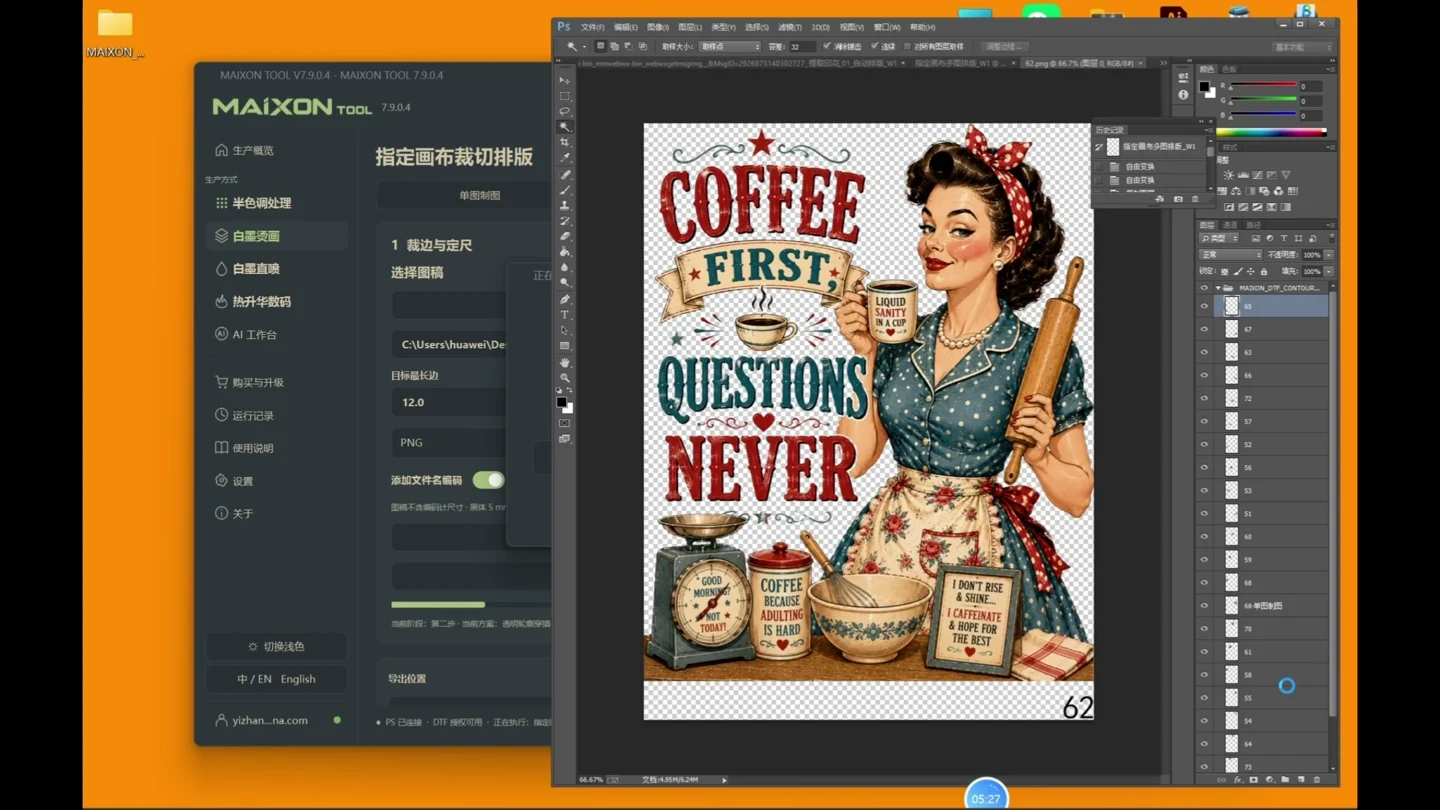
Custom canvas to layout and MainTop

Prepare artwork to a defined canvas, arrange multiple images and generate production files before continuing into MainTop.

07

Repeated layouts by area

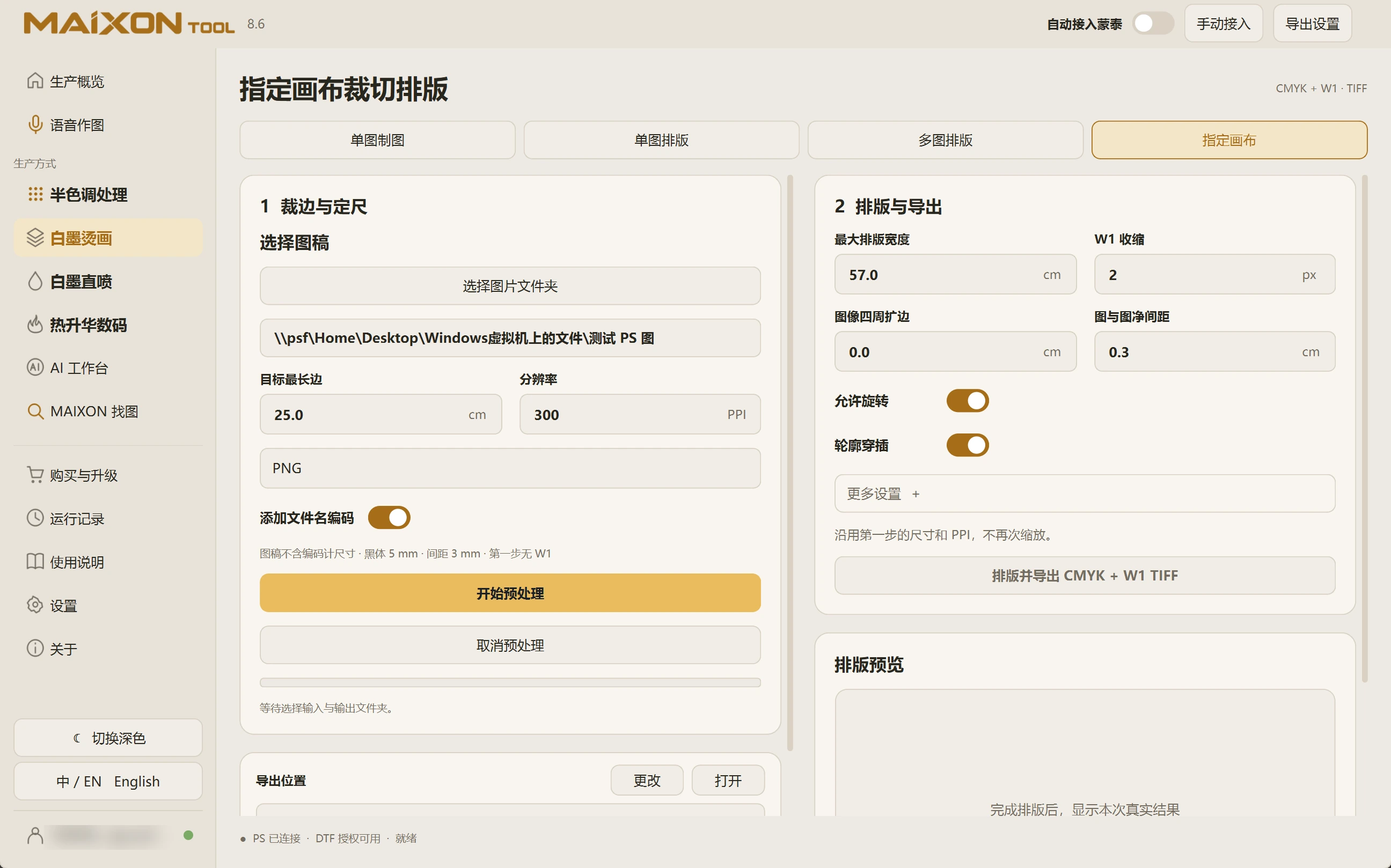
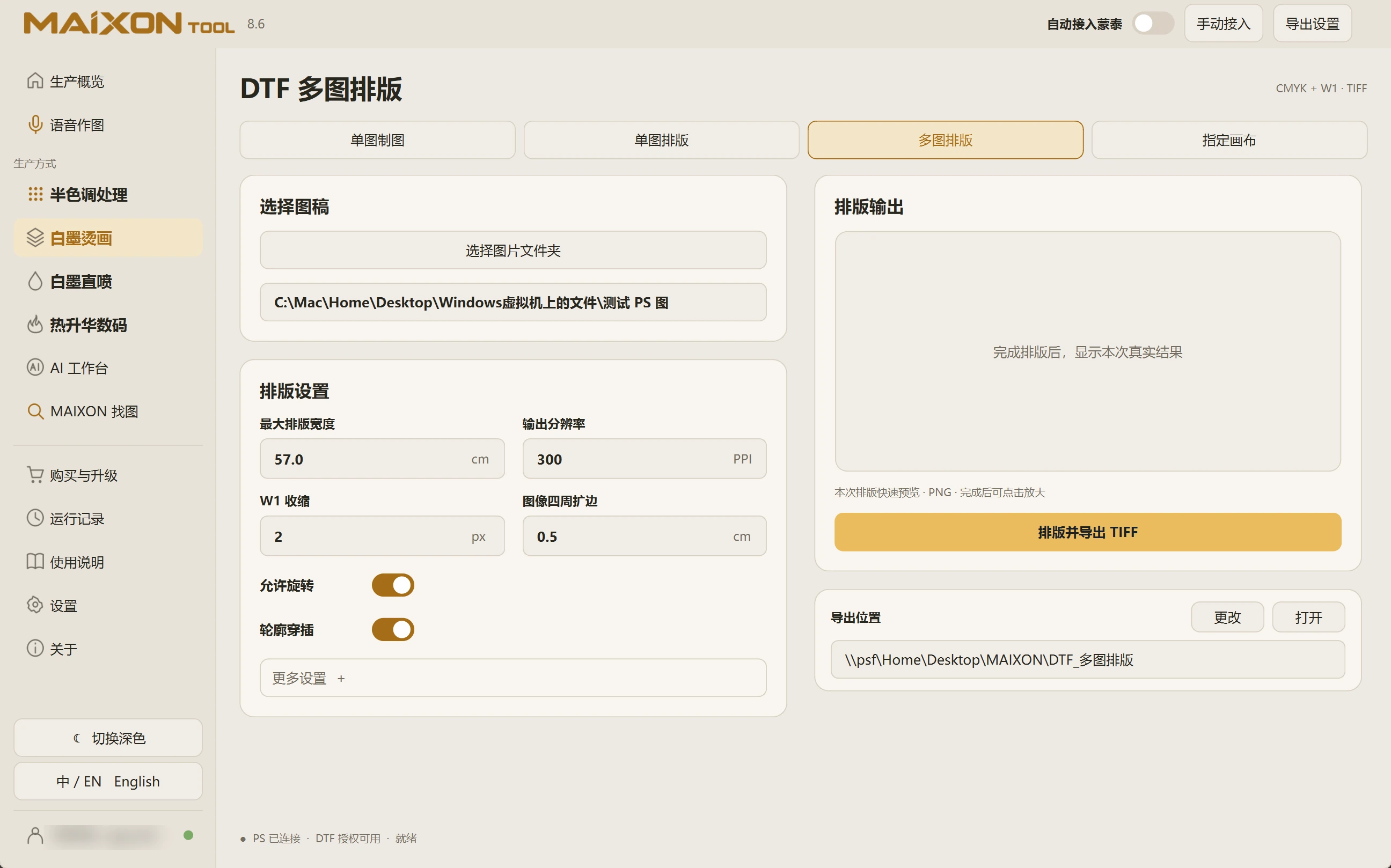
Set maximum width, target area, artwork size and margins. Generate the layout first, then create W1 and export the TIFF.

08

White choke and edge margins

W1 choke controls the white edge, while margins enlarge the canvas. Enter pixels and millimetres separately and inspect both artwork and canvas size.

09

Quick presets and TIFF output

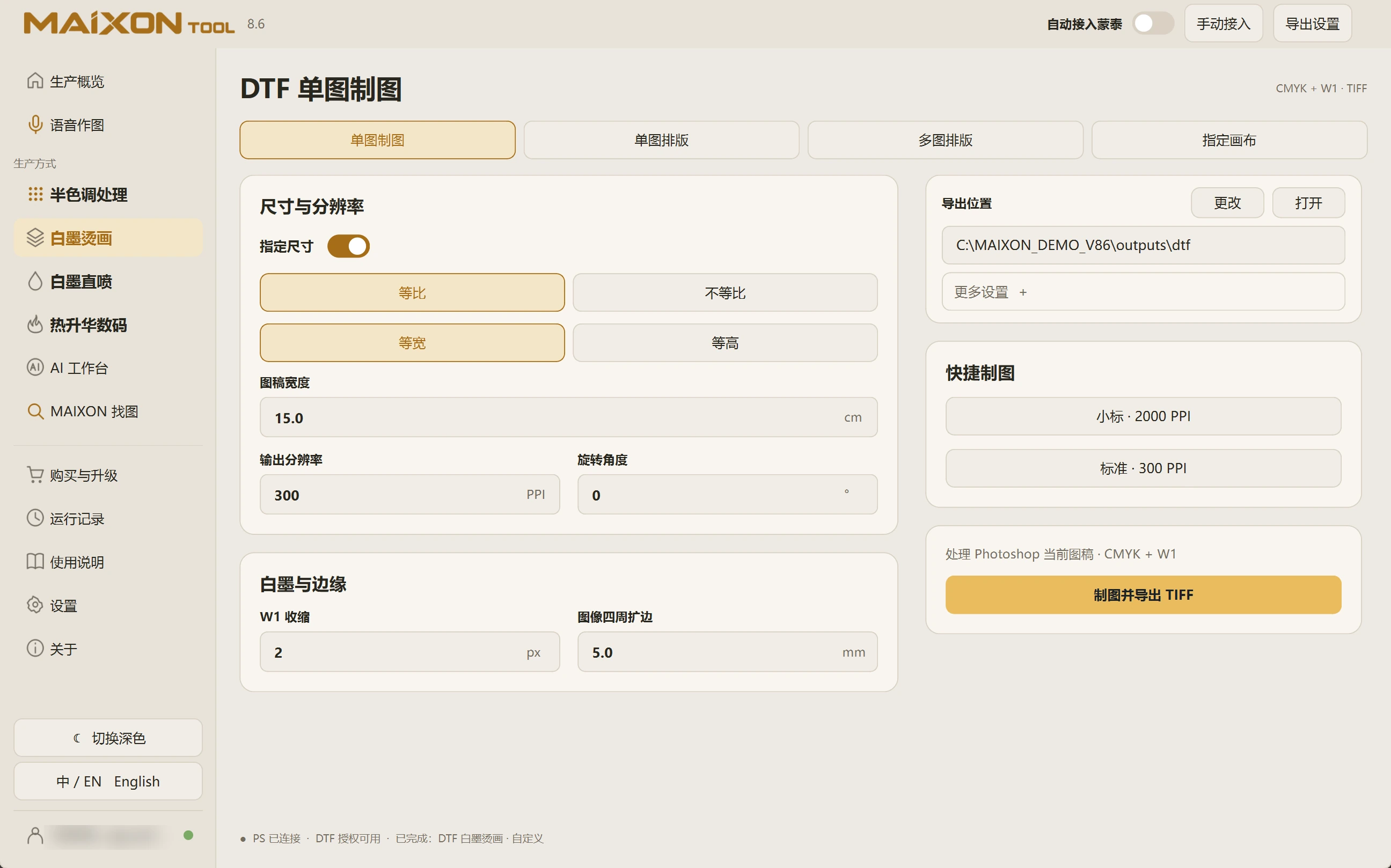
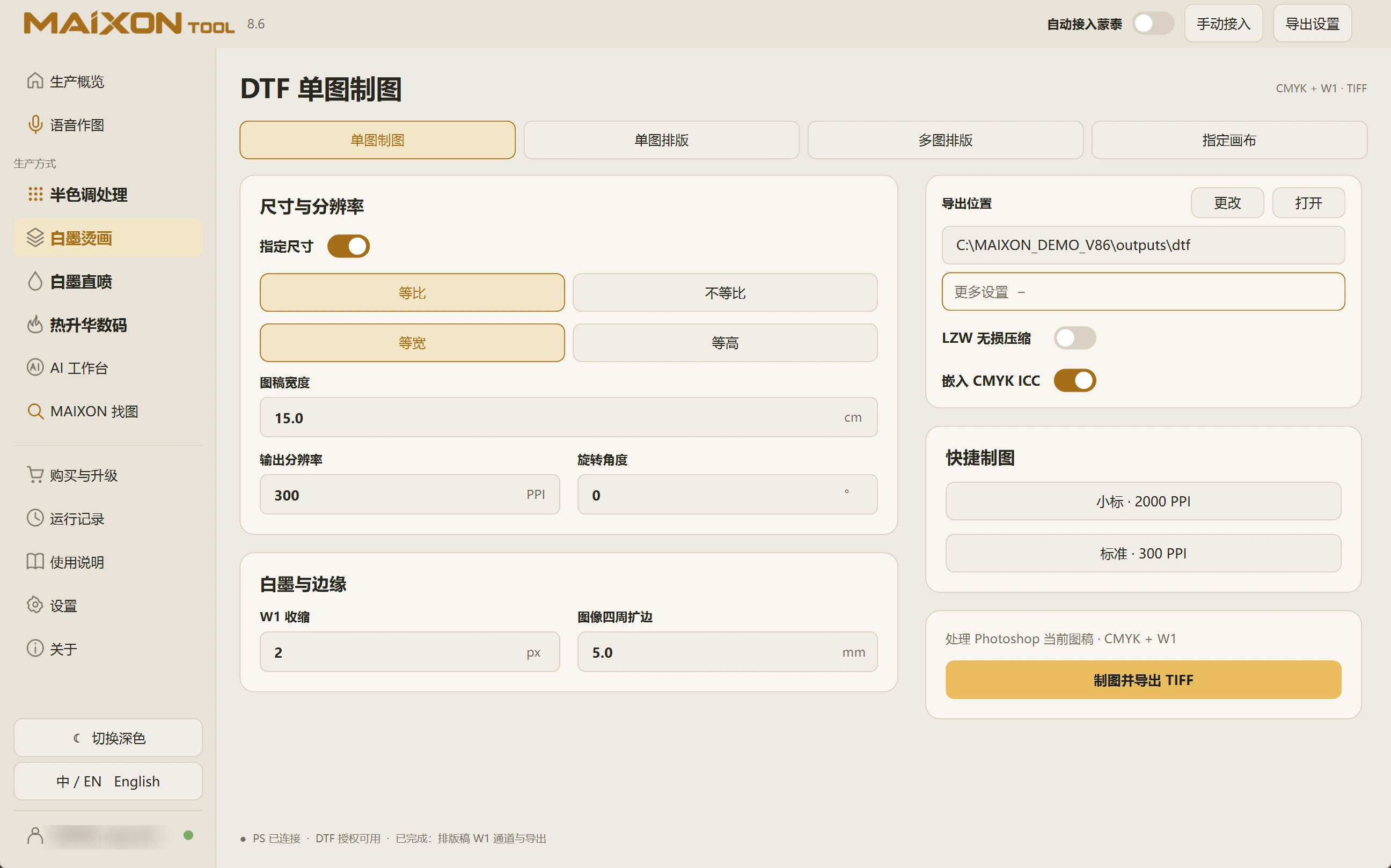
Choose the small-label or standard preset, review resolution, LZW compression and CMYK ICC options, then create a production file with W1.

10

Automatic MainTop integration

Continue from artwork, white ink and file output into MainTop.

Start your first task in this order.

  1. Open the artwork in Photoshop
  2. Choose the appropriate artwork or layout mode
  3. Set dimensions, resolution, W1 and margins
  4. Run and inspect the TIFF, color artwork and white channel

A few details to check.

  • Proportional sizing preserves shape. Non-proportional sizing changes it.
  • W1 choke is in pixels; margins are in millimetres.
  • For multiple images, check file count, rotation, spacing and the final sheet.
The two stages of repeated layouts

Review artwork dimensions, maximum layout width, margins and area. Check the height calculated by the app against the artwork height.

Generate the layout and inspect it in Photoshop. This stage does not yet create white ink or export the file.

Then review resolution and W1 choke and select Generate W1 and Export TIFF. The app does not add margins again at this stage.

01 · Select the task mode

Single Artwork prepares one image; Repeated Layout repeats a design; Multiple-image Layout combines files; Custom Canvas uses a defined canvas.

Check the current Photoshop document and, for layouts, image count, spacing and rotation.

02 · Review size and edges

Proportional sizing preserves shape. Resolution is in PPI, W1 choke in pixels and edge margins in millimetres.

A 15 cm artwork with 5 mm on each side gives a canvas about 16 cm wide. Distinguish artwork size from canvas size.

03 · Review and run

Expand additional settings and review LZW compression and embedded CMYK ICC options. Choose an output folder separate from originals.

Keep Photoshop available during processing. Inspect the run log if a task fails before repeating it.

04 · Inspect production files

Open the TIFF and inspect color channels, W1, dimensions and PPI.

For layouts, also verify quantity, spacing and complete edges. Once the artwork is ready, automatically continue into MainTop as required.

Explore every view.

Choose your operating system

Select the version that matches your computer.

  1. 01

    Windows 7

    V8.3

    Download
  2. 02

    Windows 10

    V8.3

    Download
  3. 03

    Windows 11

    V8.3

    Download
  4. 04

    macOS

    Coming Soon